

Percentage-Based Rollouts
This guide describes how you can implement a percentage-based patch rollout system using predefined tracks.
The sample code for this guide can be found at https://github.com/shorebirdtech/samples/tree/main/progressive_rollout_demo
This percentage-based rollout system has three parts:
- Using Shorebird’s “tracks” feature to publish patches to different sets of users.
- Using a cloud key-value (KV) store to manage rollout percentages for each release version.
- Randomly assigning every device a “group number” between 1 and 100. If a device’s group number is less than or equal to the current rollout percentage for the current app version, that user will get the partially rolled-out (“beta”) patch. Otherwise, the user will receive the stable patch.
Add Shorebird to your app
Section titled “Add Shorebird to your app”If you haven’t already, run Shorebird init in your Flutter project to add Shorebird to your app.
Add the shorebird_code_push package
Section titled “Add the shorebird_code_push package”This feature also requires v2.0.0 of
package:shorebird_code_push.
You can add this to your project using flutter pub add shorebird_code_push or
by adding it to your pubspec.yaml manually.
You will need to update your shorebird.yaml to tell Shorebird you want to
manage your own updates (see
auto_update):
Add logic to bucket your users
Section titled “Add logic to bucket your users”Do this by assigning each user a number between 1 and 100 and saving that value
to a local cache using
package:shared_preferences:
Add logic to determine rollout percentage
Section titled “Add logic to determine rollout percentage”This guide uses Firebase’s Cloud Firestore to create a simple key-value pairing of release versions to rollout percentages, although any method of retrieving a rollout percentage from the cloud will work.
Use these values to choose a track
Section titled “Use these values to choose a track”Now, tie this all together by using the group number and the rollout percentage to decide whether a user should get patches in the beta track or in the stable track.
Check for patches on that track
Section titled “Check for patches on that track”Pass the track to both checkForUpdate and update:
_updater is a ShorebirdUpdater(). The sample app calls _checkForUpdate()
from a button. In your app, call it each time the app starts, without awaiting
it, so the device keeps checking the track its group belongs to. With
auto_update: false, this call is also how devices learn that a patch was
rolled back, so make it early in startup; see
Update strategies. update() throws an
UpdateException when the update fails; see
When update() throws.
Seeing it in action
Section titled “Seeing it in action”So that the patch is easy to spot, first change the seedColor in main.dart
from Colors.deepPurple to Colors.red. Then create a release for Android:
This will create a release build of your app (an aab file) that is patchable with Shorebird. You will distribute this build to your users the same way you distribute your apps today.
Now, launch the example using shorebird preview, which downloads the release
and runs it on a local device:
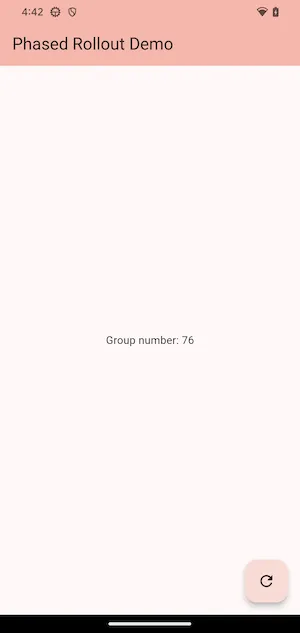
This screenshot shows that the device is in group 76. This means that it will request patches on the stable track until the rollout percentage is >= 76, at which point it will start requesting patches in the beta track.
Because a patch hasn’t been created on the beta track or a rollout percentage set yet, there isn’t much to see yet.
Change the seedColor back to Colors.deepPurple and create a patch on the
beta track using the following command:
And update the rollout percentage in Firebase:
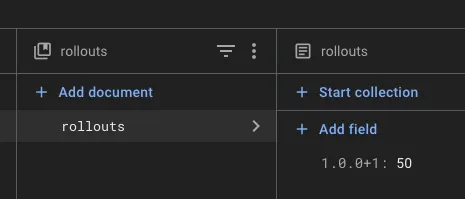
Press the update button, and the Shorebird preview output shows the following (formatted for readability):
Now, change the rollout percentage in Firebase to 76%:
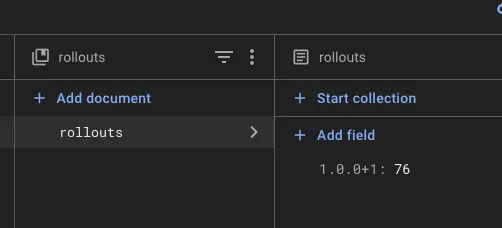
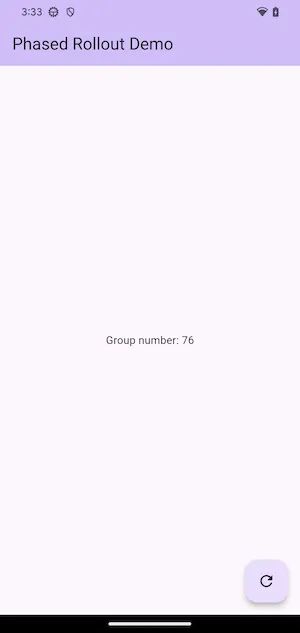
Press the update button again, and you’ll now see:
Note that the channel field in the patch check request has changed from stable to beta, and that the patch has been downloaded.
Watch the rollout
Section titled “Watch the rollout”To see how many devices run the patch, use the Insights tab in the Shorebird Console, or run:
It shows, for each patch, the share of the release’s devices running that patch or a later one. It needs Shorebird 1.6.129 or newer; see Metrics commands.
Finish the rollout
Section titled “Finish the rollout”Once the patch has reached 100% and you’re happy with it, promote it to
stable:
Devices checking stable now get it, including new installs. Promoting moves
the patch off beta, and a device that asks for a track with no patch keeps the
patch it has, so devices that already run it keep running it. Then remove the
release’s rollout percentage, so every device checks stable again. For how
promotion works, see
Promoting a patch between tracks.
Stop the rollout
Section titled “Stop the rollout”To stop more devices getting the patch, set the release’s rollout percentage
to 0. Devices then check stable again. What a device that already installed
the patch runs after that is covered in
Switching a device between tracks.
If the patch is broken, roll it back as well. A rollback applies to the patch on every track, so devices that installed it remove it on their next check, whichever track they ask for.