

Organizations
Organizations are a way to share groups of apps with people. This is useful for any team collaborating across a company to have access as needed to releases, patches, and more.
Account requirements
Section titled “Account requirements”Shorebird’s paid plans unlock features for collaborating with your peers. Organizations on the free Hobby plan can’t add members; upgrade to a paid plan to invite people. See Plans & Upgrading for how.
If you do not see the plan you’re expecting, please reach out to contact@shorebird.dev for help.
Creating an organization
Section titled “Creating an organization”To create an organization, open the Shorebird console and click the organization’s name at the top of the sidebar. In the switcher that opens, click “New organization”, enter a name, and click “Create organization”. You can rename it later in the organization’s settings.
Your first organization is free. Once you own any organization, creating another needs a paid plan of your own, or your enterprise’s when your enterprise manages your account. Without one, the switcher shows “Upgrade to create an organization” instead.
From the command line,
shorebird orgs create
creates an organization and shorebird orgs update renames one.
Managing apps
Section titled “Managing apps”Organizations can have multiple apps associated with them. You can either transfer existing apps to an organization or create new apps within the organization directly.
Create a new app
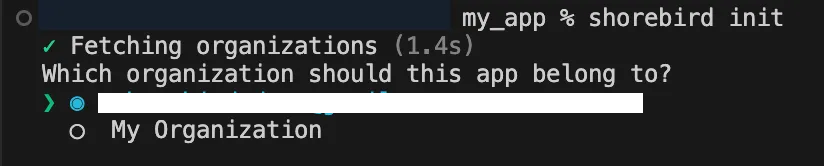
Section titled “Create a new app”To create a new app within an organization, select the organization when running
shorebird init:
Transfer an app
Section titled “Transfer an app”To transfer an existing app to an organization, visit the app’s settings and click the “Transfer” button beside the “Transfer ownership” section. You can then select the organization you want to transfer the app to from the dropdown. You must be an admin or owner of both the app’s current organization and the one you transfer it to. Organizations where you aren’t are shown in the dropdown but can’t be selected, and if you aren’t an admin or owner of the app’s current organization, the “Transfer” button is disabled.
The app’s releases and patches move with it. Members of the old organization who aren’t in the new one lose the access their old role gave them, and their API keys stop working for the app too, so update any CI that uses one.
Usage follows the app’s current organization. All of the app’s installs in the new organization owner’s current billing period, including installs from before the transfer, count toward that owner’s usage and plan limits. Check that the new owner’s plan has room before transferring a high-traffic app.
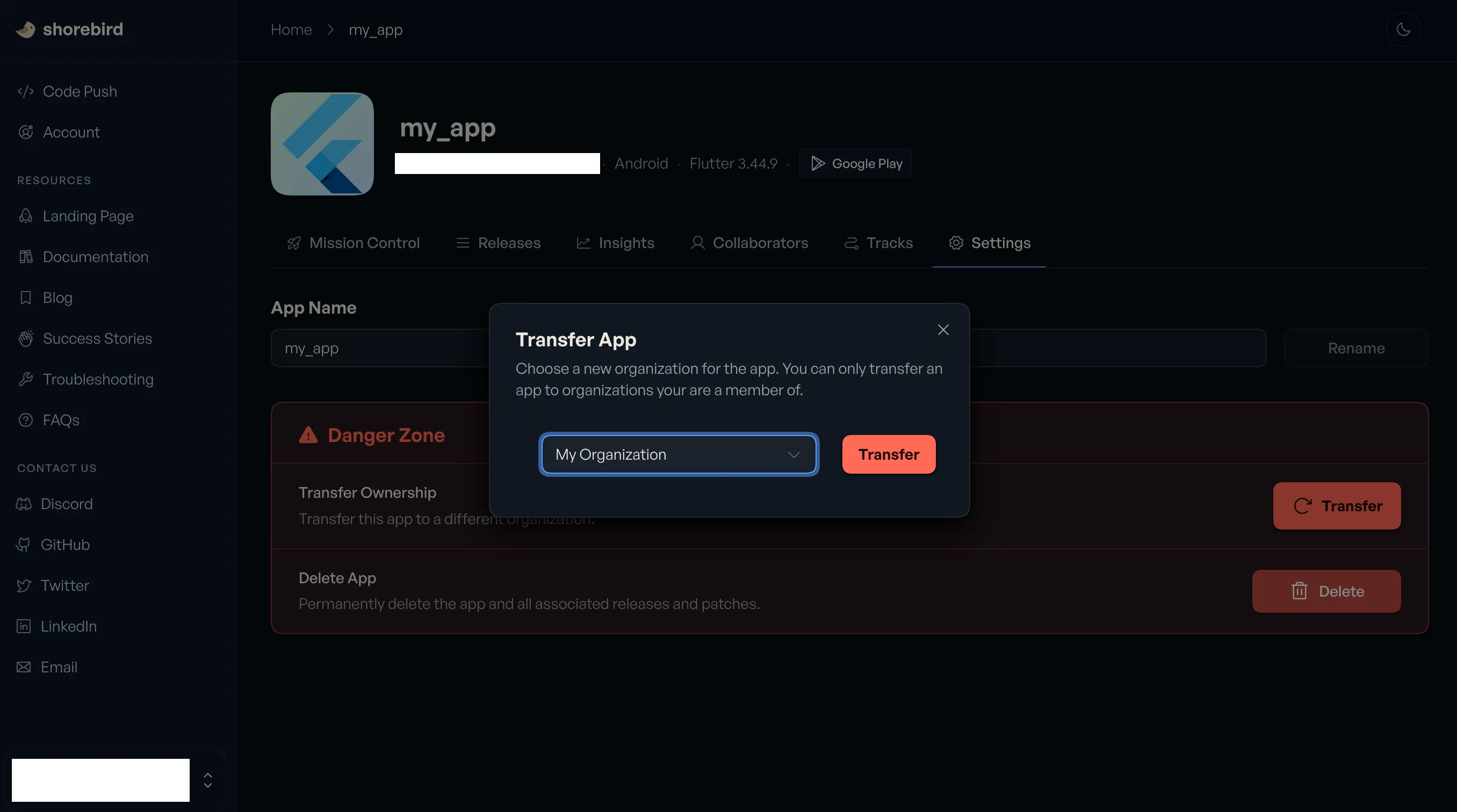
You can also transfer an app from the command line with
shorebird apps transfer.
Managing members
Section titled “Managing members”Add a member
Section titled “Add a member”To add one or more members to your organization, visit the organization’s settings, go to “Members” section and click the “Invite member” button.
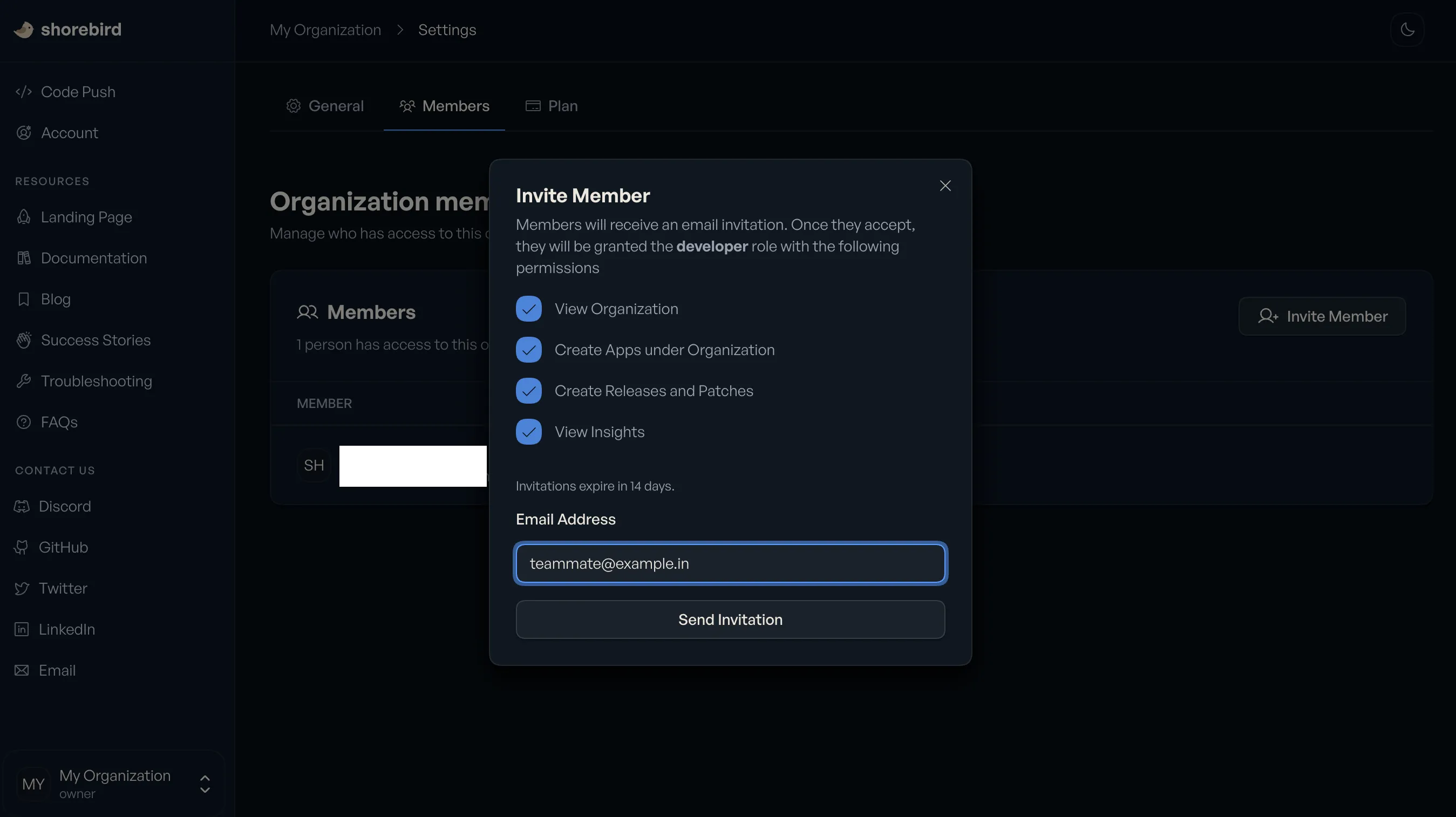
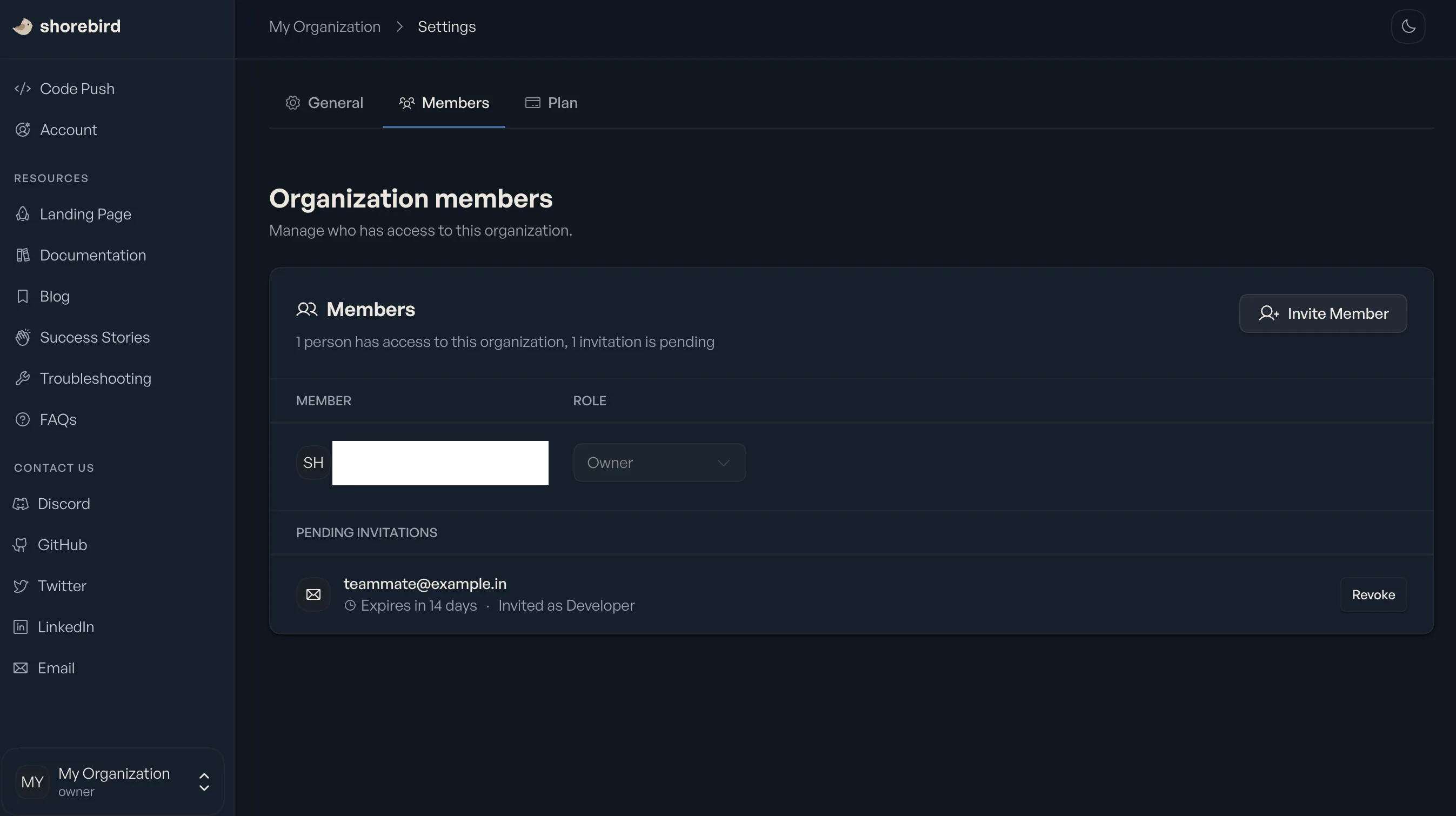
You can also edit a member’s role or remove them from the organization from the same members page.
Remove a member
Section titled “Remove a member”To remove a member, open the organization’s settings and go to the “Members” section. Click the ⋮ menu next to the member, choose “Remove”, and confirm.
Manage members from the CLI
Section titled “Manage members from the CLI”shorebird members (Shorebird 1.6.135 or newer) lists, invites, and removes an
organization’s members and changes their roles. On its own it lists them.
shorebird orgs list lists your organizations’ IDs. Without --org-id, a
command uses the organization that owns the app in the current directory’s
shorebird.yaml, or your only organization.
The person joins once they accept the invitation, from the emailed link or with
shorebird invitations accept. If the email doesn’t
arrive, send them the link yourself: on the Members page, find their pending
invitation, click its link icon (Copy invitation link), and copy the link
from the dialog that opens. Only the invited email address can accept it, after
signing in with that address. If they’re already in the directory of the
organization’s enterprise, they’re added right away instead. The plan decides
which roles you can give. The CLI never makes anyone the owner
or changes or removes the owner; ownership is transferred in the console. A
pending invitation’s role can’t be changed: remove it and invite the person
again.
Every member can list members, and so can a service account with any role but
Auditor, with its key or from GitHub Actions. Inviting, changing roles, and
removing need the Admin or Owner role. The commands work with a
shorebird login session or your personal API key in SHOREBIRD_TOKEN, but not
with a release and patch only key.
members remove asks you to confirm in a terminal. Without a terminal, in CI,
or with --json, pass --yes, or it exits with a usage error and removes
nothing. With --json, members list returns each member’s user ID and each
pending invitation’s ID, with their email, role, and status. Run
shorebird members <command> --help for each command’s options.
Accept an invitation
Section titled “Accept an invitation”When someone invites you to an organization, Shorebird emails you a link to accept it. You can also see and answer your pending invitations from the command line:
Each line shows the invitation’s id, the organization or app name, its kind
(organization or app), the role you’d get, who sent it, and when it was sent
and expires. Accept or decline one by its id:
Sign in as the invited email address first. If you’re signed in as a different
account, the CLI tells you to run shorebird account whoami and
shorebird login. Service account keys and release and patch only API keys
can’t answer invitations.
shorebird invitations needs Shorebird 1.6.130 or newer.
Member roles
Section titled “Member roles”Organization roles apply to all apps within the organization and can be managed via the organization settings page in the Shorebird console. To share some apps but not others, create a separate organization, transfer those apps into it, and invite people there. The roles you can give members depend on the organization’s plan, which is its owner’s plan. On Enterprise, the people who manage the account itself hold separate enterprise roles. Those grant no app access by themselves, but an enterprise Admin or Owner can add anyone in the enterprise, themselves included, to any of its organizations.
| Hobby | Pro | Business | Enterprise | |
|---|---|---|---|---|
| Viewer | ✅ | ✅ | ✅ | |
| Developer | ✅ | ✅ | ✅ | |
| App Manager | ✅ | |||
| Admin | ✅ | ✅ | ✅ | |
| Owner | ✅ | ✅ | ✅ | ✅ |
Service accounts hold roles too, with their own choices: Viewer, Developer, App Manager, or Auditor, on every plan.
What each role can do
Section titled “What each role can do”Each role can do everything the roles to its left can, plus what its column marks. A role’s abilities apply to every app in the organization.
| Viewer | Developer | App Manager | Admin | Owner | |
|---|---|---|---|---|---|
| See apps, releases, patches, tracks, insights, members, the plan and usage | ✅ | ✅ | ✅ | ✅ | ✅ |
| Create releases and patches, and edit their notes | ✅ | ✅ | ✅ | ✅ | |
| Promote, roll back and roll forward patches, and create tracks | ✅ | ✅ | ✅ | ✅ | |
Create apps (shorebird init), rename them, and delete them | ✅ | ✅ | ✅ | ||
| Delete releases and tracks | ✅ | ✅ | |||
| Rename the organization and transfer apps in or out | ✅ | ✅ | |||
| Invite and remove members, change their roles, and manage app collaborators | ✅ | ✅ | |||
| Manage service accounts, their keys and trust rules | ✅ | ✅ | |||
| Read the audit log (Enterprise) | ✅ | ✅ | |||
| Make someone else the owner, delete the organization, and choose its plan | ✅ |
An App Manager doesn’t see the app’s Settings tab in the console, but can
still open that page and rename or delete the app there. Run
shorebird apps delete, which prints the page’s
link and opens it, or add /settings to the app’s address in the console. An
App Manager can also rename an app with
shorebird apps rename.
App Manager is only offered on Enterprise. On Pro and Business, only Admins and
the Owner can create an app. shorebird init skips organizations where you’re a
Developer or Viewer: if you’re an Admin or Owner of another organization, it
creates the app there (or asks which one, or wants --org-id in CI), so check
the organization it names. If you can’t create apps anywhere, it stops with
You cannot create apps in any of your organizations. Give whoever sets up new
apps the Admin role, or create the app for them and let them release and patch
it as a Developer. For automation that creates apps, use a
service account with the App Manager
role, which every plan offers to service accounts.
Viewer
Section titled “Viewer”Read-only access for stakeholders who need visibility into apps, releases, and patches without the ability to make changes. Ideal for product managers, QA, support, or leadership teams.
Developer
Section titled “Developer”Hands-on role for engineers actively building and shipping apps. Can create releases and patches, promote patches, and manage day-to-day development workflows without administrative access.
App manager
Section titled “App manager”Responsible for the organization’s apps. Has all Developer capabilities, plus creating, renaming and deleting apps. It can’t delete releases or tracks, or manage members. Available on Enterprise.
Administrative role for managing team access and organization-level settings. Can configure apps, manage users and roles, and handle most operational tasks, excluding billing and plan changes.
Full control over the organization. Can manage billing and plans, ownership settings, and all platform capabilities. Intended for primary account holders. If the owner has left, see Account access and ownership.
Billing & ownership
Section titled “Billing & ownership”Each organization has a single owner. An organization’s plan is determined by its owner’s subscription. Their Shorebird subscription is what sets the plan and available features for the entire organization.
To manage billing, the organization owner can visit the billing settings in the Shorebird console. See Billing for more details. For what happens to the plan when ownership changes, see Account access and ownership.
Per-app collaborators
Section titled “Per-app collaborators”Some apps have collaborators: people with access to that one app rather than to its organization. The app’s Collaborators tab, which the organization’s Admins and Owner and the app’s Admin collaborators see, lists them and any pending app invitations; change a collaborator’s role or remove them there. An organization Admin or Owner can also click Add to organization on a collaborator’s row to make them a member of the organization. You can’t add new collaborators. To give someone access to an app, add them as a member of the organization that owns it; a member’s role applies to every app the organization owns.
If you’re a collaborator on an app, shorebird orgs list shows its organization
with the role none, and its invitations show the kind app in
shorebird invitations list.