

Code Push for Android add-to-app
This guide explains how to use Shorebird in an Android add-to-app scenario (that is, your app embeds Flutter UI in non-Flutter UI). If you are new to this pattern, see the Add Flutter to an existing app Flutter Concepts article first.
Prerequisites
Section titled “Prerequisites”This guide assumes you already have an Android app and a Flutter module. The
Android app will be named AddToAppDemo (in the sample’s AndroidAddToAppDemo
directory) and the Flutter module will be named my_flutter_module.
This guide also assumes that you have created a Shorebird account. If you have not, see the Code Push guide for instructions.
The reference code for this guide is available at https://github.com/shorebirdtech/samples/tree/main/add_to_app.
Add Shorebird to your Flutter module
Section titled “Add Shorebird to your Flutter module”First, run shorebird init in your Flutter module:
Create a Shorebird release
Section titled “Create a Shorebird release”Create a Shorebird release for your Flutter module:
The release-version parameter needs to match the version of the Android app
that uses this module (i.e., versionName+versionCode from the app’s
app/build.gradle file).
Update your Android app to use the download.shorebird.dev Maven repository
Section titled “Update your Android app to use the download.shorebird.dev Maven repository”In settings.gradle.kts (or settings.gradle):
Update your Android app to use this version of the Flutter module
Section titled “Update your Android app to use this version of the Flutter module”In app/build.gradle.kts (or app/build.gradle), add the following:
Keep the keepDebugSymbols line on every Flutter version. The
Flutter 3.44 advice to remove it
is for a Flutter app’s android/app/build.gradle, not for your host app’s
app/build.gradle.
Verify that your app runs
Section titled “Verify that your app runs”In Android Studio, update the active build variant to release and run your app. Your app should work as before with no differences.
To set the active build variant to release, click on the “Build Variants” tab in the lower left corner of Android Studio. Then select “release” from the “Active Build Variant” dropdown.
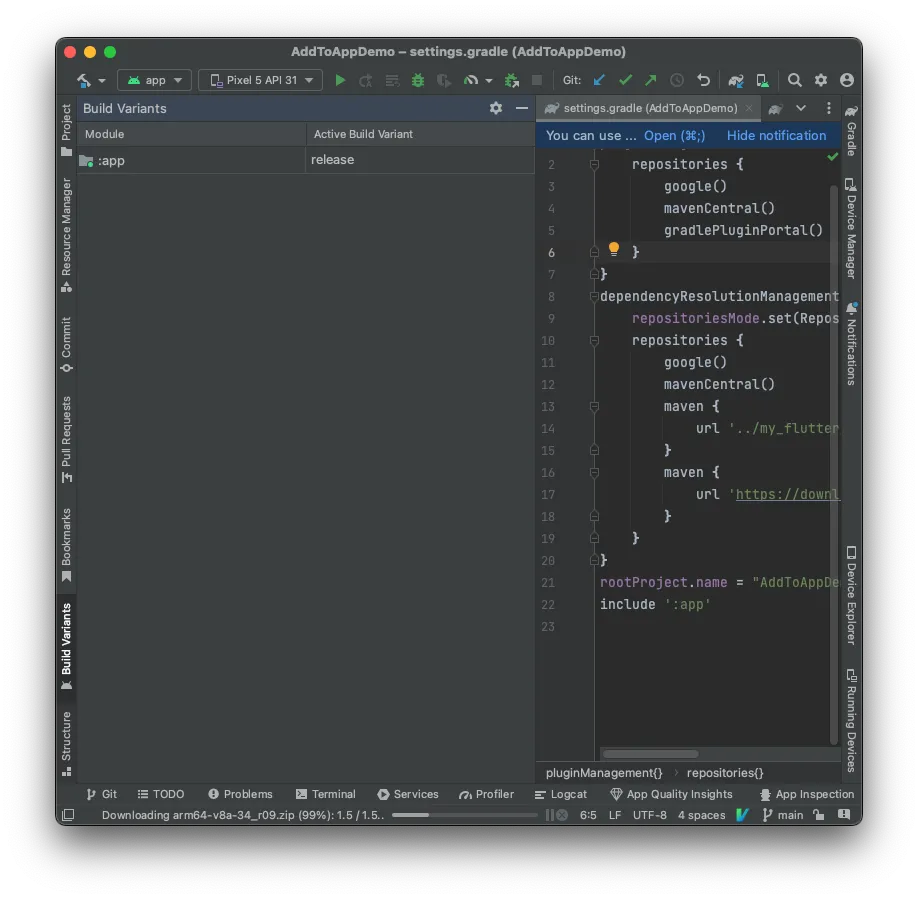
Attempting to build with a non-release build variant will not be able to resolve Flutter symbols in your app.
Submit your app to the Play Store
Section titled “Submit your app to the Play Store”This step isn’t covered in detail here, but this is where you would submit your
app to the Play Store. For Code Push to work, it is important that you submit
with the same aar generated by the release command above.
Verify that Shorebird is working with a patch
Section titled “Verify that Shorebird is working with a patch”Make an edit to the code in your Flutter module. Then run:
As with the release command, the release version should be the version of the
Android app that uses this module.
Now relaunch the app, navigate to the Flutter screen, and verify that the patch is recognized and applied. In logcat, you should see output like the following:
Release and patch the module from CI
Section titled “Release and patch the module from CI”In CI, the module and the host app are usually built by different jobs. Keep the
module’s release directory from the job that released it, and build the host
app you ship from that directory:
- The release job runs
shorebird release aar --release-version 1.2.3+1in the module and keeps thereleasedirectory it writes, for example as a build artifact. - The host app’s store build reads the module from that
releasedirectory, through themavenrepository insettings.gradleabove. Don’t rebuild the module for the store build: patches install only on theaarthatshorebird release aarbuilt. - A patch job runs
shorebird patch aar --release-version 1.2.3+1 --track=stablein the module, with the same--build-numberas the release if you passed one. It doesn’t need thereleasedirectory; Shorebird downloads what it needs from the release.
The job needs SHOREBIRD_TOKEN; see the CI guides.
With GitHub Actions, the Shorebird actions take platform: aar. The release
version goes in args for a release and in release-version for a patch:
See GitHub Integration for the rest of the workflow, including Java setup.
Test patches before publishing them
Section titled “Test patches before publishing them”To try a patch in a host app you build yourself before your users get it, see Test an add-to-app patch before publishing it.
To give QA a build of your host app that gets patches before your users do, see Give QA an add-to-app build, then promote it.
Multiple Dart entrypoints
Section titled “Multiple Dart entrypoints”If your host app starts the module through more than one Dart entrypoint or engine, see Multiple Dart entrypoints and engines.